Public Wi-Fi Checklist for Mac Users
A practical Mac checklist for public Wi-Fi at airports, hotels, and cafes: the settings that still matter, and the old advice you can stop worrying about.

Public Wi-Fi is far less dangerous than it was a decade ago, and knowing why tells you what’s still worth doing. Widespread HTTPS fixed most of what made open networks scary in 2015, so the modern checklist is short: confirm you’re on the real network, turn on a VPN before you browse, and lock down a couple of sharing settings. The rest is habit.
What actually changed since 2015
The old fear was someone on the same cafe network reading your passwords as they crossed the air. HTTPS closed that door. Nearly every site now encrypts its connection end to end, so the person two tables over sees scrambled traffic even on a wide-open network.
What’s left is a narrower, more specific set of risks. Fake hotspots, sometimes called evil twins, are networks named to look like the real one, so you connect to an attacker’s router instead of the coffee shop’s. DNS snooping lets the network log which sites you visit even when it can’t read the contents. Captive portals, those “agree to continue” pages, can be imitated. And plain shoulder surfing still works, because no encryption stops someone reading your screen.
The reason a fake hotspot is worth caution isn’t that it can crack HTTPS, because it can’t. It’s that once your traffic flows through someone else’s router, they control the surrounding experience: the fake sign-in page they show you, the DNS answers they hand back, and the nudges to install something or “verify” a login. The danger is the setup around your connection, not the encrypted contents inside it, which is why confirming the network name up front does more good than any amount of inspecting individual sites once you’re on.
The five-minute checklist
Seven quick checks cover almost all of it:
- Verify the exact network name with staff. A fake hotspot’s only trick is looking legitimate, so confirming the real name defeats it.
- Turn the VPN on before you browse, not after. Anything you load before connecting went out in the clear.
- Set AirDrop to Contacts Only in Control Center, so strangers on the network can’t send you anything.
- Confirm the firewall is on under System Settings > Network > Firewall, which blocks unexpected incoming connections from others on the network.
- Turn off auto-join for public networks so your Mac doesn’t silently reconnect to a lookalike later.
- Do sensitive tasks after the captive portal loads, never on that first sign-in page itself.
- Forget the network when you leave so it isn’t saved and rejoined automatically next time.
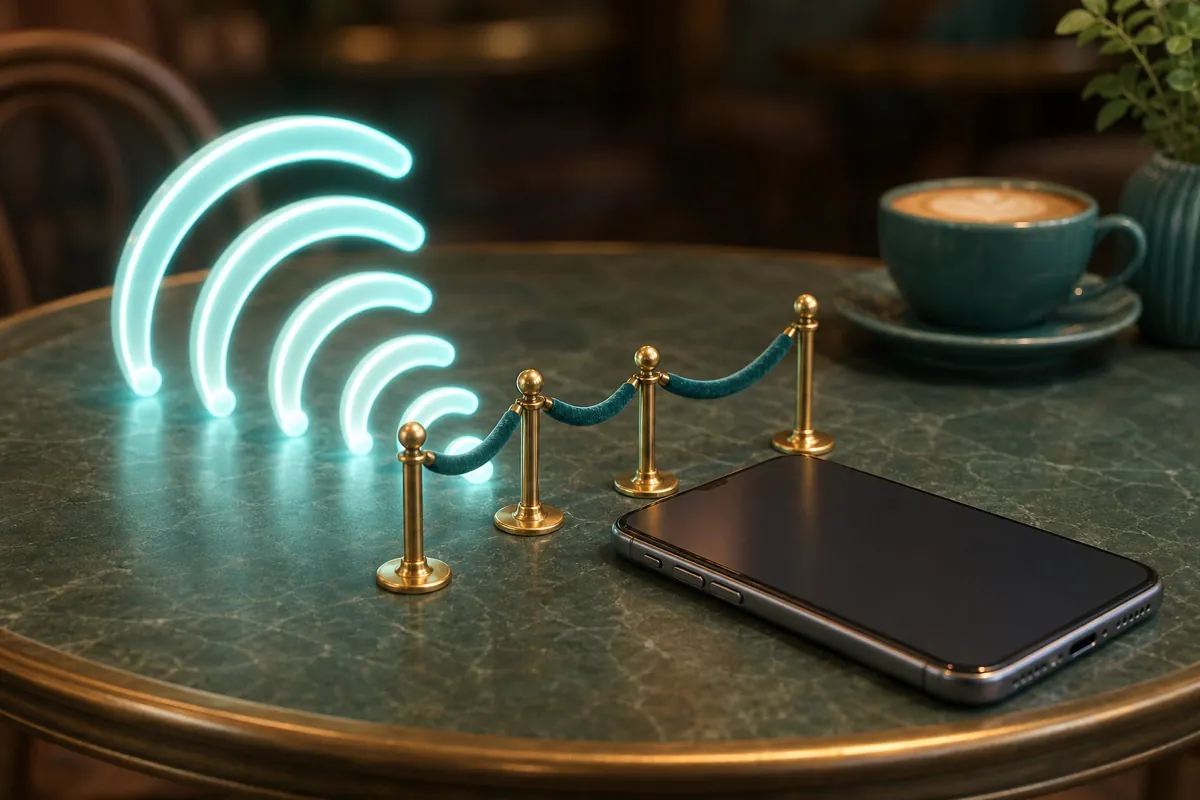
The one item worth doing first every time is the VPN. It’s the step that covers the most ground at once, and the longer case for when to use a VPN explains why the “before, not after” timing matters so much. A tool like BlueHammer VPN turns most of the network-level risks on this list into a single switch you flip before you open the browser.
What you don’t need to worry about anymore
You can stop worrying about the person next to you “reading” the HTTPS sites you visit. On any current site, they can’t; the padlock means the contents are encrypted between your Mac and the site. Chasing that particular ghost is a holdover from an era that mostly ended.
The risk that replaced it is subtler and worth naming plainly. What the network can still see is metadata: which sites you connect to, roughly when, and how much. That’s what a VPN hides and HTTPS doesn’t. And the fake-hotspot risk is about which network you trust, not which sites you visit, so verifying the name matters more than inspecting any padlock. If you want to go further than the network layer, a look at the Mac security settings worth checking covers the on-device side.
When something feels off, use your phone
The simplest fallback costs nothing. If the network name looks slightly wrong, the captive portal seems off, or you just don’t trust the place, skip the Wi-Fi entirely and use your phone’s personal hotspot. A cellular connection is yours, not a stranger’s router, and it sidesteps the whole category of network-level risk in one move.
It’s a good default for anything genuinely sensitive, too. Checking a bank balance or logging into a work account over your own hotspot for two minutes removes the guesswork entirely, and a modern phone plan barely notices the data. Save the public network for the browsing that doesn’t matter much, and let your own connection carry the rest.
That’s the honest bottom line for public Wi-Fi: it’s usually fine with a VPN and a few settings in place, and on the rare occasion it feels wrong, trusting that instinct and switching to your own connection is faster than talking yourself out of it.
Common questions
Is public Wi-Fi safe if the site uses HTTPS?
The contents of an HTTPS site are safe, since the connection is encrypted end to end and the person next to you can't read what you type. But the network can still see which sites you visit through DNS lookups, and none of that protects you from a fake hotspot set up to imitate the real one. HTTPS solved the eavesdropping problem, not the whole problem.
What does a VPN add on public Wi-Fi?
A VPN encrypts everything leaving your Mac, including the DNS lookups that otherwise reveal which sites you visit, so the local network sees one opaque stream instead of your activity. It also defuses fake hotspots, because even if you connect to a malicious network, your traffic stays wrapped in the tunnel. It's the single highest-value item on a public Wi-Fi checklist.
Is a hotel network safer than a cafe?
No. A hotel network follows the same rules as any network you didn't set up, and if anything the longer sessions and more sensitive tasks make it worth more caution, not less. Treat both as untrusted and the checklist is identical.
Recommended next step
Make everyday Mac care easier with BlueHammer
Clean up storage, organize files, browse privately, and keep everyday protection in one place.
Download privacy tools